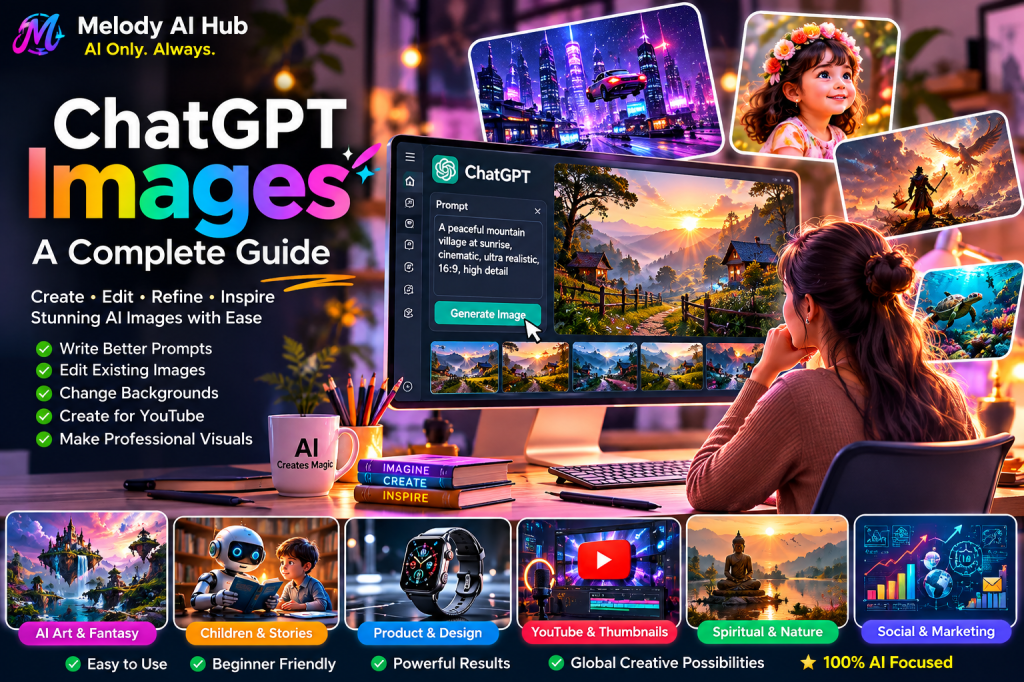
ChatGPT Images: A Complete Guide to Creating Better AI Images
Creating an impressive AI image is no longer only about writing a complicated prompt.
With ChatGPT, you can describe what you want in natural language, generate an image, review the result and continue refining it through conversation.
OpenAI’s current ChatGPT Images experience is designed for both creating images from scratch and working with existing images. Its newer image-generation capabilities also improve areas such as instruction following, text rendering, visual consistency and editing.
For creators, this opens up a simple workflow:
Idea → Prompt → Image → Review → Refine → Final Image
Let’s see how to use it effectively.
🎨 What Is ChatGPT Images?
ChatGPT Images is OpenAI’s image-generation experience inside ChatGPT.
You can describe an image in ordinary language and ask ChatGPT to create it.
You can also work with an existing image and request changes.
For example:
Create a cinematic photograph of a quiet Kerala village road during the monsoon, with lush greenery, soft morning light and realistic details.
You don’t need to know technical image-generation terminology to begin.
The important thing is to describe your visual idea clearly.

1. Start With the Main Idea
Before worrying about camera settings, lighting or artistic styles, decide what the image is actually about.
Ask yourself:
What is the subject?
For example:
- A person
- A landscape
- A product
- A building
- A historical scene
- A fantasy character
- A food dish
- A city
- A family moment
Start with the central idea.
Then add details.
2. Describe the Scene
Once you know the subject, describe the environment.
Instead of:
A woman walking.
Try:
A young woman walking alone along a misty mountain road at sunrise, surrounded by green hills and small roadside houses.
The second description gives the image much more visual direction.
Think about:
- Location
- Time of day
- Weather
- Background
- Surroundings
- Mood
- Action
3. Describe the Mood
Mood can dramatically change an image.
You can ask for:
- Peaceful
- Joyful
- Nostalgic
- Mysterious
- Dramatic
- Romantic
- Spiritual
- Energetic
- Cinematic
- Dreamlike
For example:
Make the scene peaceful and nostalgic, like a remembered childhood morning.
Now the image has an emotional direction as well as a physical setting.
4. Tell ChatGPT What Style You Want
You can describe the visual style in ordinary language.
For example:
Create it as a realistic cinematic photograph.
Or:
Create it as a detailed watercolor illustration.
Or:
Create it as a premium editorial photograph.
Or:
Create it as a colourful children’s storybook illustration.
You can experiment with different visual directions while keeping the same basic idea.
5. Think About Composition
Composition describes how the important elements are arranged inside the image.
You can request:
- Close-up portrait
- Wide landscape
- Full-body view
- Overhead view
- Low-angle perspective
- Symmetrical composition
- Subject positioned on the left
- Space on the right for text
- Subject in the centre
For example:
Place the character on the left side of the frame and leave clean negative space on the right for a headline.
That is particularly useful when creating YouTube thumbnails, posters and social-media graphics.
6. Choose the Right Aspect Ratio
Different platforms require different shapes.
For example:
9:16 → Shorts, Reels and other vertical content
16:9 → YouTube thumbnails and landscape visuals
1:1 → Square social-media graphics
You can tell ChatGPT what format you need as part of your request.
For example:
Create this as a vertical 9:16 composition suitable for a short-form video.
7. Creating Text Inside Images
AI-generated text has improved significantly.
OpenAI specifically highlights improved text rendering in ChatGPT Images 2.0.
This can be useful for:
- Posters
- Infographics
- Covers
- Advertisements
- Social graphics
- Educational visuals
- Presentation-style images
However, always inspect the final image carefully.
If the wording isn’t correct, ask ChatGPT to regenerate or refine it.
8. Edit an Existing Image
One of the most useful capabilities is not creating a completely new image.
It is changing an existing one.
You can provide an image and ask for specific modifications.
For example:
Remove the people in the background but keep the main subject unchanged.
Or:
Change the background to a sunset while keeping the person’s appearance and clothing consistent.
Or:
Replace the ordinary wall with a luxurious modern interior.
OpenAI describes ChatGPT Images as supporting precise edits, creative transformations and stronger preservation of important visual details.
9. Don’t Change Everything at Once
Suppose your image is already good but needs a few improvements.
Instead of asking for ten changes at once, try making smaller revisions.
For example:
First:
Make the lighting warmer.
Then:
Add subtle mist in the background.
Then:
Make the expression more natural.
This makes it easier to control the creative direction.
10. Use Conversation to Refine the Image
This is where ChatGPT becomes particularly useful.
You don’t necessarily need to write a completely new prompt every time.
You can simply say:
Keep the same composition but make it more realistic.
Then:
Keep everything else unchanged and make the background slightly darker.
Then:
Keep the subject exactly the same and add soft golden light.
You’re effectively having a conversation with the image generator.
11. Creating Images for YouTube
ChatGPT Images can be particularly useful for creators.
You can create concepts for:
- YouTube thumbnails
- Video backgrounds
- Story scenes
- Character concepts
- Channel artwork
- Educational graphics
- Promotional visuals
For a thumbnail, don’t simply ask:
Create a YouTube thumbnail.
Give the image a purpose.
For example:
Create a dramatic 16:9 YouTube thumbnail showing a mysterious abandoned house in a Kerala village at night. Make the house the main focus, use cinematic lighting and leave clear space on the left for a short headline.
That gives the image a much stronger direction.
12. Creating Images for Short-Form Videos
For Shorts and Reels, vertical composition is important.
A useful instruction is:
Create a cinematic vertical 9:16 image designed for a short-form video. Keep the main subject clearly visible in the central safe area.
This helps you think about the final platform before creating the image.
13. Creating Consistent Characters
If you’re developing a story, consistency becomes important.
Instead of repeatedly describing the character from scratch, refer to the established visual details.
For example:
Keep the same character’s hairstyle, clothing, facial features and age as in the previous image. Change only the location.
This can help maintain continuity when developing multiple scenes.
However, AI-generated visuals can still vary, so always inspect each result.
14. Create Multiple Visual Directions
Don’t settle for the first idea.
Ask ChatGPT:
Give me three different visual directions for this concept: cinematic, realistic documentary and artistic illustration.
Then choose the strongest direction.
This is often faster than trying to perfect one concept immediately.
15. Use Reference Images Carefully
When working from an existing image, explain what you want to preserve.
For example:
Use this image as the reference. Keep the person’s identity, pose and clothing. Change only the environment to a rainy mountain location.
Being explicit about what should stay and what should change can make the instruction much clearer.
16. A Simple AI Image Prompt Formula
You don’t need complicated prompt engineering.
Try this structure:
Subject + Environment + Action + Composition + Lighting + Style + Format
For example:
A young couple + walking beside a misty mountain lake + holding hands + wide cinematic composition + soft golden sunrise light + realistic cinematic photography + 16:9.
You can then add any important details.
This simple structure is enough to create many strong prompts.
17. Weak Prompt vs Better Prompt
❌ Weak
Make a beautiful mountain picture.
It’s understandable, but it leaves almost everything to interpretation.
✅ Better
Create a cinematic 16:9 landscape photograph of a mist-covered mountain valley at sunrise, with a narrow road winding through lush green hills, soft golden light breaking through the clouds, realistic atmospheric depth and a peaceful mood.
The second prompt provides:
Subject + environment + time + lighting + composition + mood + style
That gives the image generator much more direction.
18. Don’t Overload the Prompt
More words don’t automatically mean a better image.
If you add too many contradictory instructions, the result can become less predictable.
Start with the essential details.
Then refine.
Simple → Generate → Inspect → Improve
This is usually better than trying to describe every tiny detail in one enormous prompt.
19. Think Like an Art Director
One of the best ways to improve AI images is to stop thinking only like a prompt writer.
Think like an art director.
Ask:
- What should the viewer notice first?
- Where should the subject be?
- What emotion should the image create?
- What should remain in the background?
- Where will text go?
- What lighting fits the story?
- What visual style fits the audience?
These decisions often matter more than adding another fifty words to a prompt.
20. AI Image Creation Is an Iterative Process
Your first image doesn’t have to be perfect.
In fact, it often won’t be.
A better workflow is:
Create
↓
Inspect
↓
Identify the problem
↓
Give a precise instruction
↓
Generate again
↓
Compare
↓
Refine
This turns image generation into a creative process rather than a one-shot command.
⚠️ Check the Final Image Carefully
Before publishing an AI-generated image, inspect:
- Faces
- Hands
- Text
- Objects
- Background details
- Logos
- Clothing
- Perspective
- Shadows
- Unwanted elements
AI image generation has improved enormously, but visual errors can still occur.
A few seconds of checking can prevent an embarrassing mistake from reaching your audience.
🌍 Create for a Global Audience
AI image generation isn’t limited to one country’s visual style.
You can create scenes inspired by different:
- Cultures
- Countries
- Languages
- Architecture
- Fashion
- Landscapes
- Historical periods
- Artistic traditions
You can also request multilingual text and culturally specific visual details. OpenAI highlights improved multilingual capabilities in ChatGPT Images 2.0.
This makes AI image generation particularly valuable for creators serving international audiences.
🧠 The Real Secret to Better AI Images
The biggest improvement doesn’t come from memorising hundreds of prompt keywords.
It comes from learning to communicate your visual idea clearly.
Tell the AI:
What you want.
What it should look like.
What should remain unchanged.
What should be different.
What the image is being used for.
Then refine the result.
🎯 A Practical Prompt You Can Try
Copy this into ChatGPT and experiment:
Create a premium cinematic 16:9 image of a creative person working at a modern desk while developing an AI project. Show subtle visual elements representing writing, image creation, video, music and research around the workspace. Use realistic lighting, sophisticated composition, natural details, a modern technology atmosphere and enough clean space for a headline. Make it look like a professional technology magazine cover.
Then try changing only one element at a time:
Make it more futuristic.
Make it more realistic.
Make it darker and more cinematic.
Change it to a vertical 9:16 composition.
Keep the composition but make it suitable for a YouTube thumbnail.
That’s how you learn what instructions actually change the result.
Final Takeaway
ChatGPT Images gives creators a powerful way to move from an idea to a visual through natural conversation.
You don’t need to become a professional prompt engineer before you begin.
Start with the idea.
Describe the scene.
Generate the image.
Look carefully at the result.
Tell ChatGPT what needs to change.
Repeat until the visual matches your goal.
The best AI image isn’t created by the longest prompt. It’s created by the clearest creative direction.
🔗 Official OpenAI Resources
🤖 ChatGPT
Create and refine images directly through ChatGPT.
🎨 ChatGPT Images 2.0
Read OpenAI’s official announcement about the latest ChatGPT Images experience.
→ Read the official announcement
🖼️ Creating Images With ChatGPT
OpenAI’s practical guide to creating and refining images with ChatGPT.
→ OpenAI Academy: Creating Images
💻 OpenAI Image Generation API
For developers building image-generation applications with OpenAI’s image models.
Keep This Article Updated
AI image-generation capabilities are developing rapidly. OpenAI regularly introduces improvements, so this article should be reviewed when significant changes are made to ChatGPT Images or OpenAI’s image-generation technology.
Last updated: August 2026
Melody AI Hub focuses exclusively on artificial intelligence for creators.

 Melody AI Hub
Leave a comment